


How to Enable Location Access for Giottus
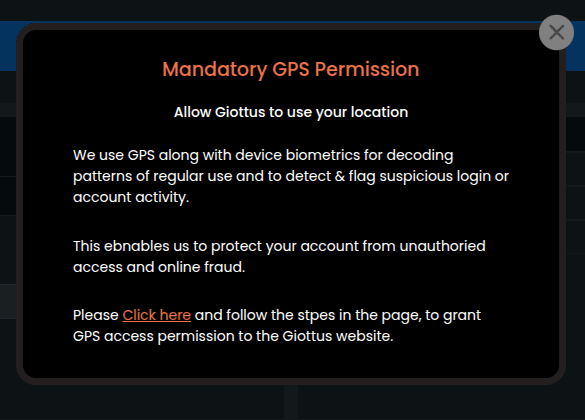
At Giottus, your security and compliance matter. As part of regulatory best practices and to enhance your trading experience, we now request access to your location when you use our platform. This helps us ensure you're accessing Giottus from a supported region and allows us to serve you better.
Enabling location access is quick and easy — and in this guide, we’ll walk you through the simple steps to turn it on via your browser.
Let’s get started.
- Safari through the application browser:
Open Safari and go to the Giottus website.
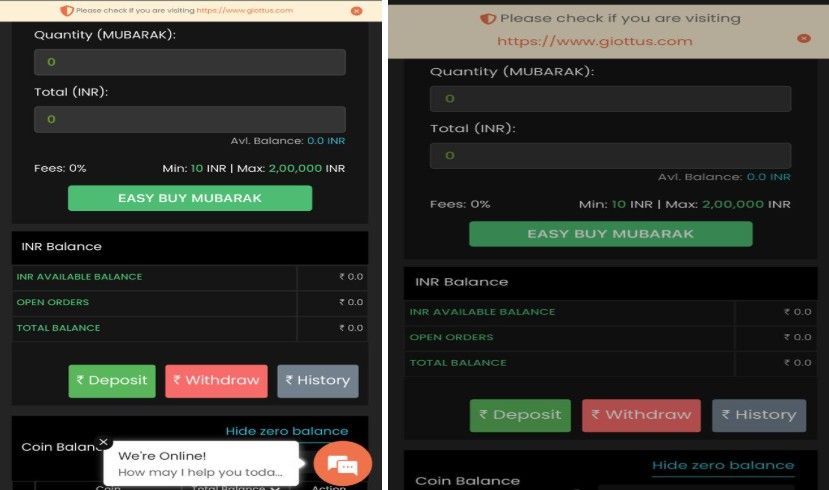
In the menu bar at the bottom, click on the icon displayed below
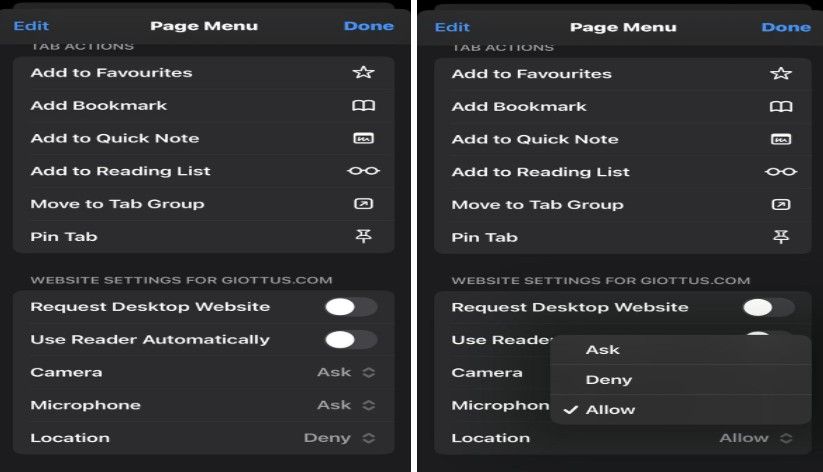
A dropdown menu will appear. Next to “Location”, choose:
“Allow” – to always allow location access
“Ask” – to be prompted every time
“Deny” – to block location access
Click on 'Allow' option and the location would be enabled. Refresh the page for the changes to take effect.
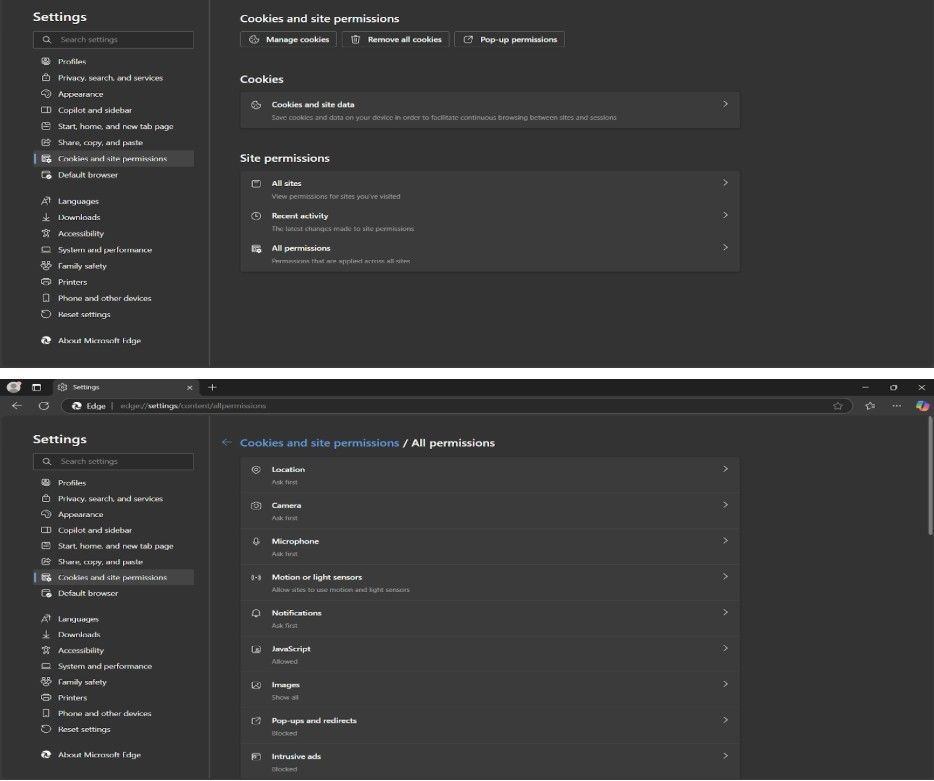
- Microsoft Edge through system website:
Open the Edge browser.
Tap the three-dot menu (top right corner).
Go to Settings > Site permissions > All permissions > Location.
Make sure location access is turned ON.
If Giottus.com is listed under Blocked, remove it or change it to Allow.
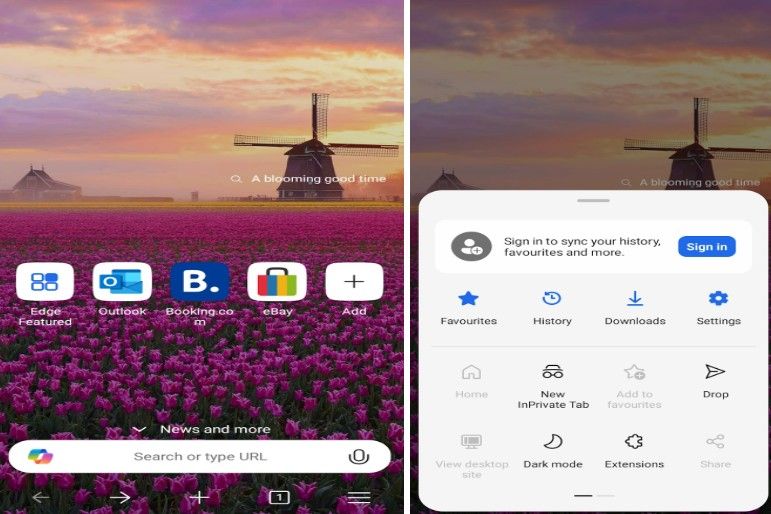
- Microsoft Edge through application browser:
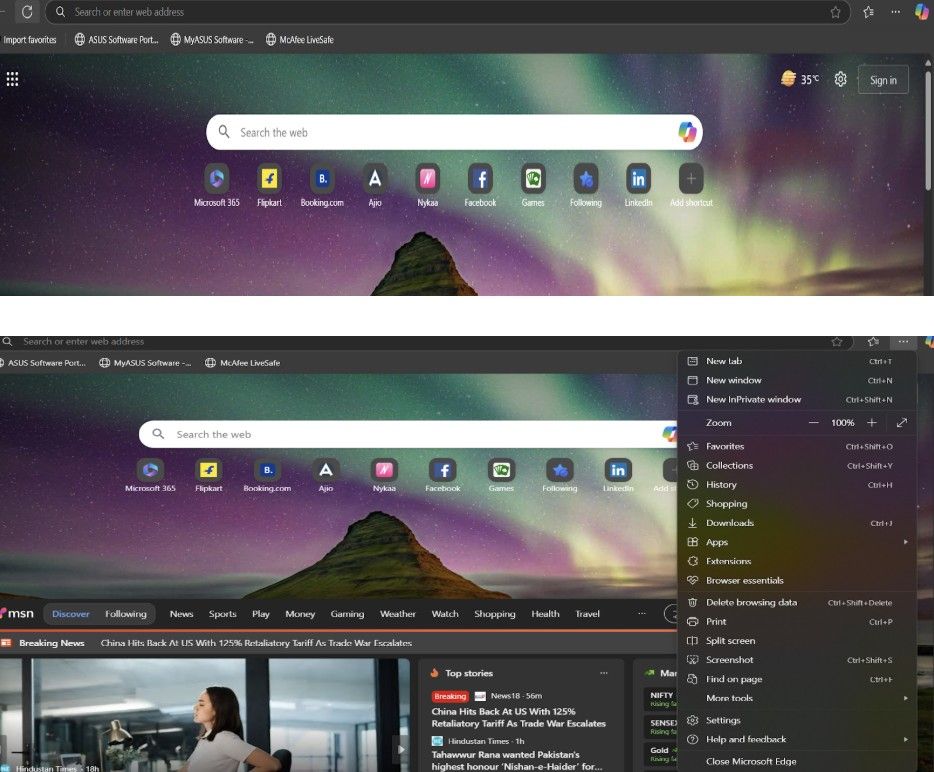
Open the Microsoft Edge app.
Tap the 3-dot menu at the bottom center.
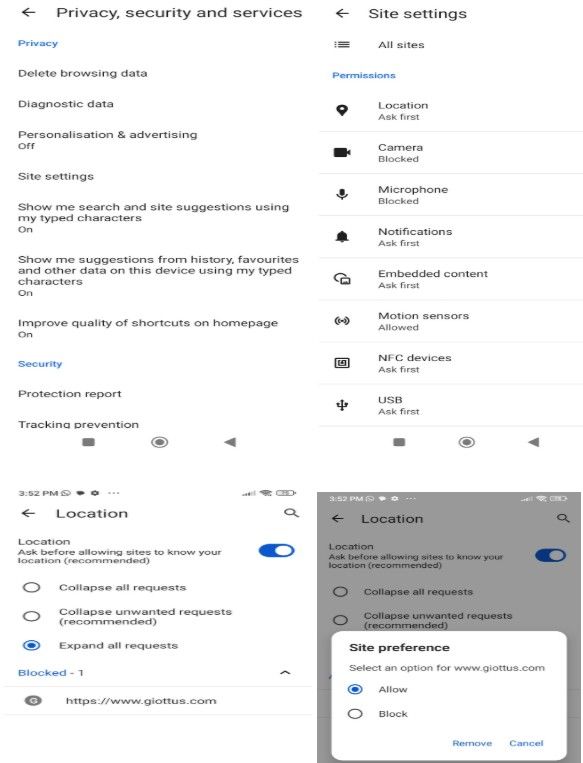
Go to Settings.
Scroll down and tap Site permissions.
Tap Location.
If Giottus.com is listed under Blocked, remove it or change it to Allow.
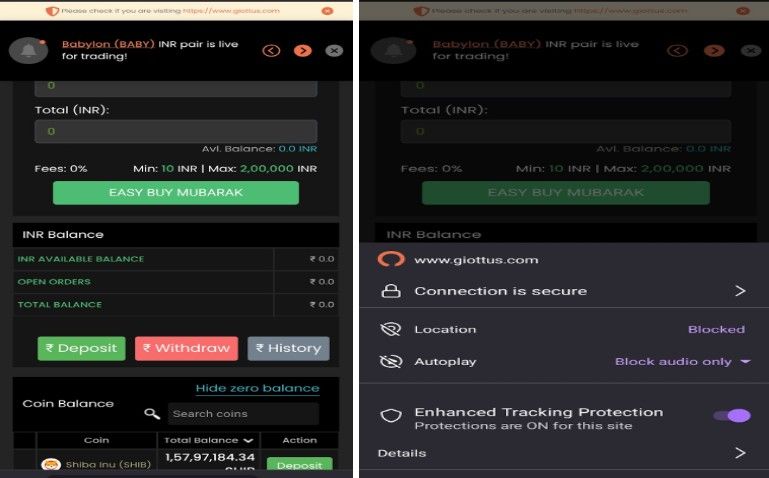
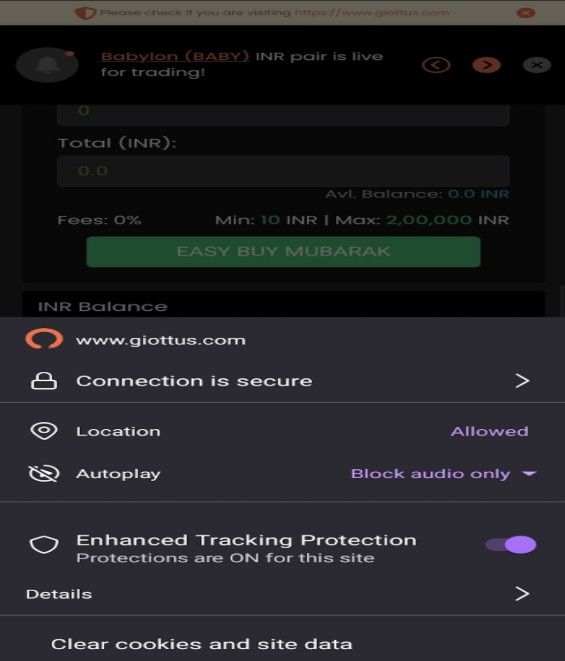
- Firefox through the application browser:
Open the Firefox app on your Android phone.
Go to the website you want to enable location for.
Tap the lock icon in the address bar.
Tap Location.
Choose “Allow” from the list of options.
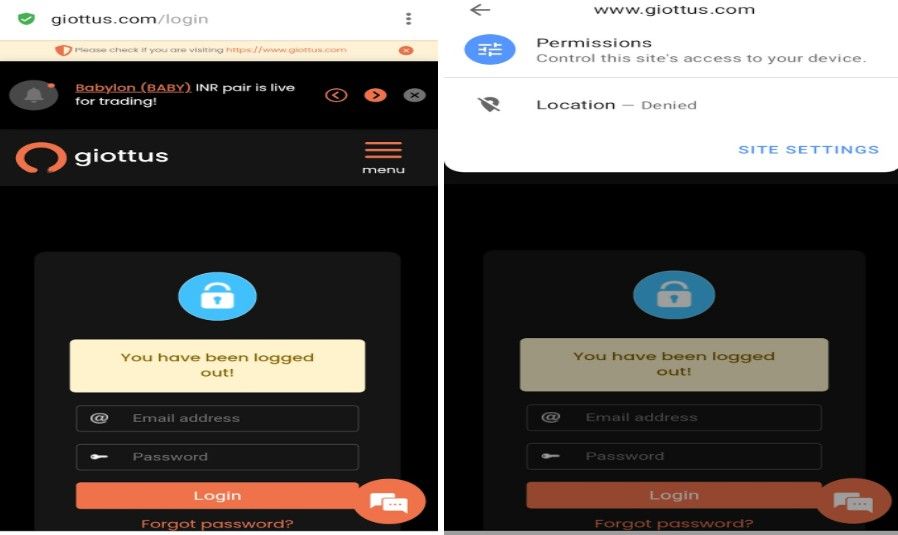
- Opera through application browser:
Open the Opera application on your Android phone.
Go to the website you want to enable location for.
Tap the icon written before Giottus website in the address bar.
In the dropdown menu, tap Permissions.
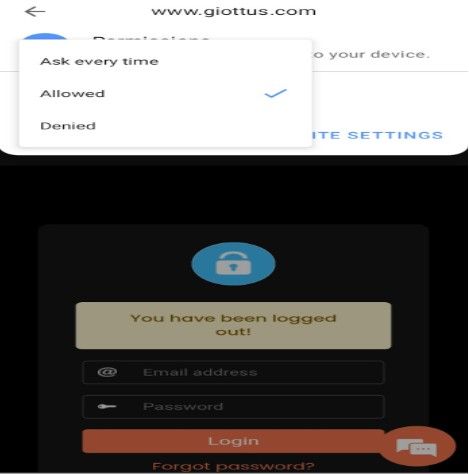
Tap Location.
Choose “Allow” from the list of options.
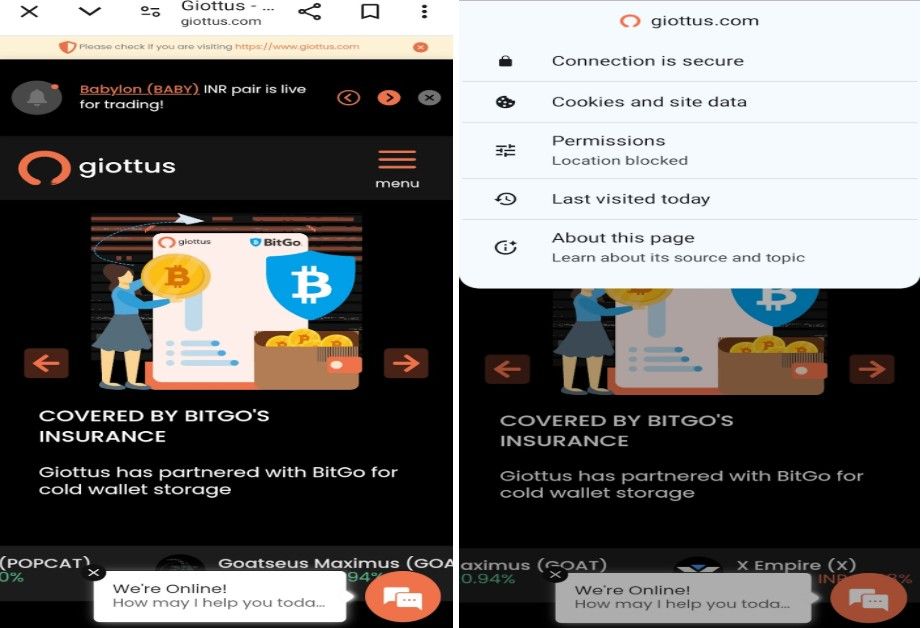
- Chrome through application browser:
Open the Chrome application on your Android phone.
Go to the website you want to enable location for.
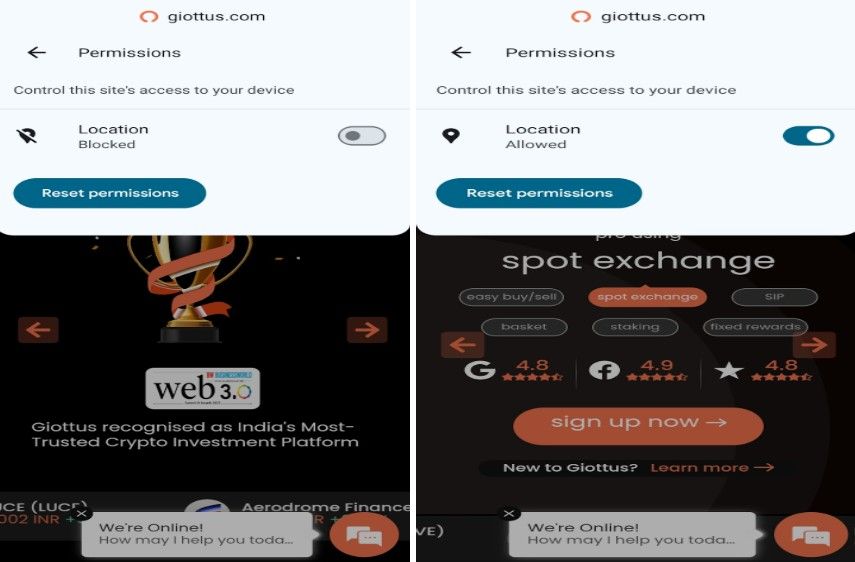
Tap the icon written before Giottus website in the address bar.
In the dropdown menu, tap Permissions.
Tap Location.
Set it to “Allow”.


- Chrome through System browser:
Open Chrome.
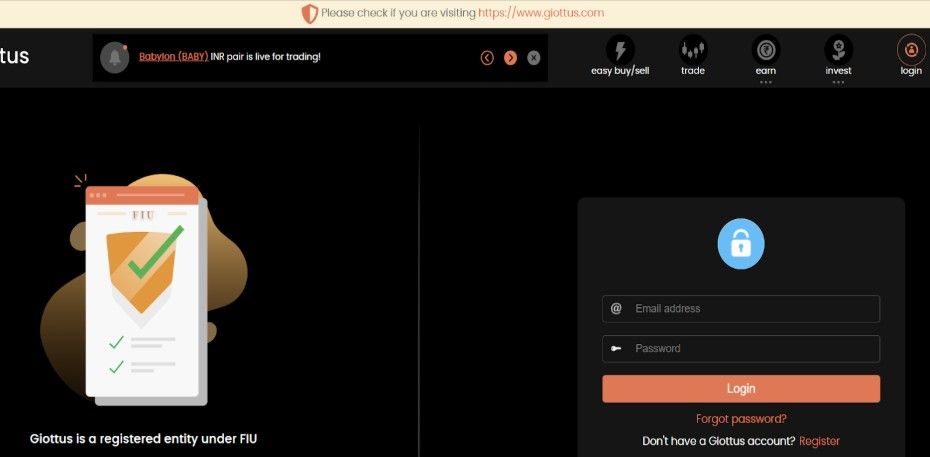
Visit https://www.giottus.com.
When prompted to access your location, tap “Allow”.
If you're not prompted:
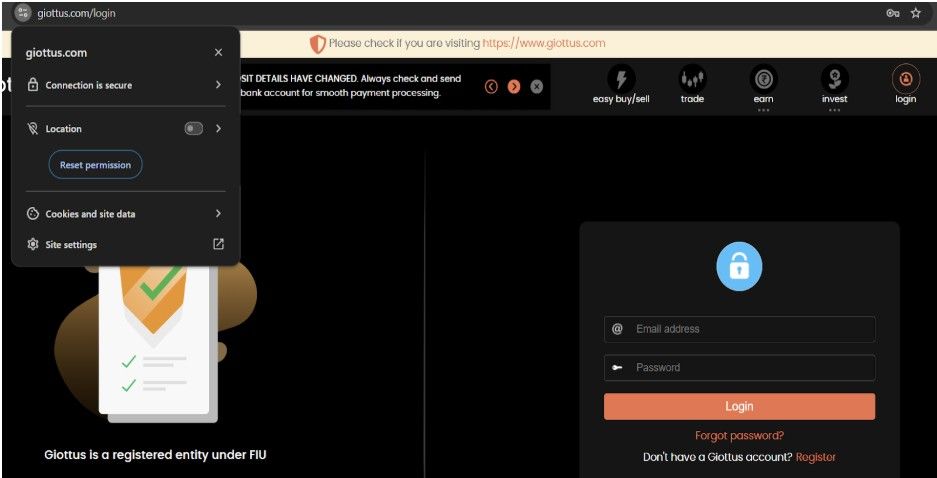
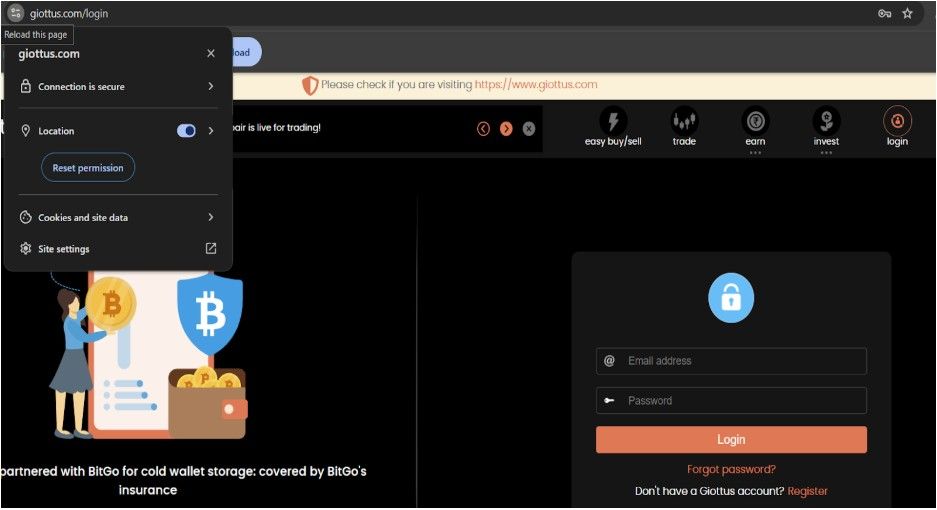
Tap the lock icon in the address bar.
Tap Permissions.
Tap Location, and set it to “Allow”.
Updated on: 8th December, 2025 4:27 PM


